How to see what you actually worked on
It is Friday and someone asks what you got done this week. You worked the whole week. You are fairly sure of that. But the specific answer, the list of things, is surprisingly hard to reconstruct.
If you open a normal time tracker at that moment, it tells you that you spent eleven hours in your browser, six in your editor and four in Slack. All true. None of it is the answer to the question.
Why app and website totals do not answer it
Application totals describe where your attention was pointed, not what it was pointed at. An hour in a browser could be reading documentation for the thing you shipped, or reviewing a contract, or comparing flights. The tool records the same hour either way.
The mismatch gets worse the more fragmented your work is. Real work is not one application at a time. A single piece of work spreads across an editor, a browser, a terminal, a chat window and a notes app, and then gets interrupted and resumed twice. Every one of those moments is filed separately by an app-level tracker, so the work itself disappears into the totals.
In one real three-hour stretch measured by Timeslicer, the block contained eighteen distinct tasks and thirty-five switches between them. An app-level report of that stretch is accurate and tells you almost nothing.
The same limitation applies to productivity scores. Knowing that a day was seventy-two percent productive does not help you plan the next one, because it does not say what the productive part was.
Why manual tracking does not fix it either
The obvious fix is to record the work yourself, with a timer or a timesheet. It genuinely does produce task names, and for people who bill by the hour it is often worth the effort.
The failure mode is well known to anyone who has tried it. You forget to start the timer. You forget to stop it, and Tuesday afternoon shows six unbroken hours on one task. You reconstruct Thursday on Friday from memory, which is the exact thing you were trying to avoid. Manual tracking is most accurate for people who need it least.
What it takes to name the work automatically
To produce a task name rather than an app name, a tracker has to work from what was on the screen, not just which window was in front. That means reading text from the window, grouping the fragments that belong to the same piece of work, and labelling the group.
The result reads like a list of work instead of a list of software.
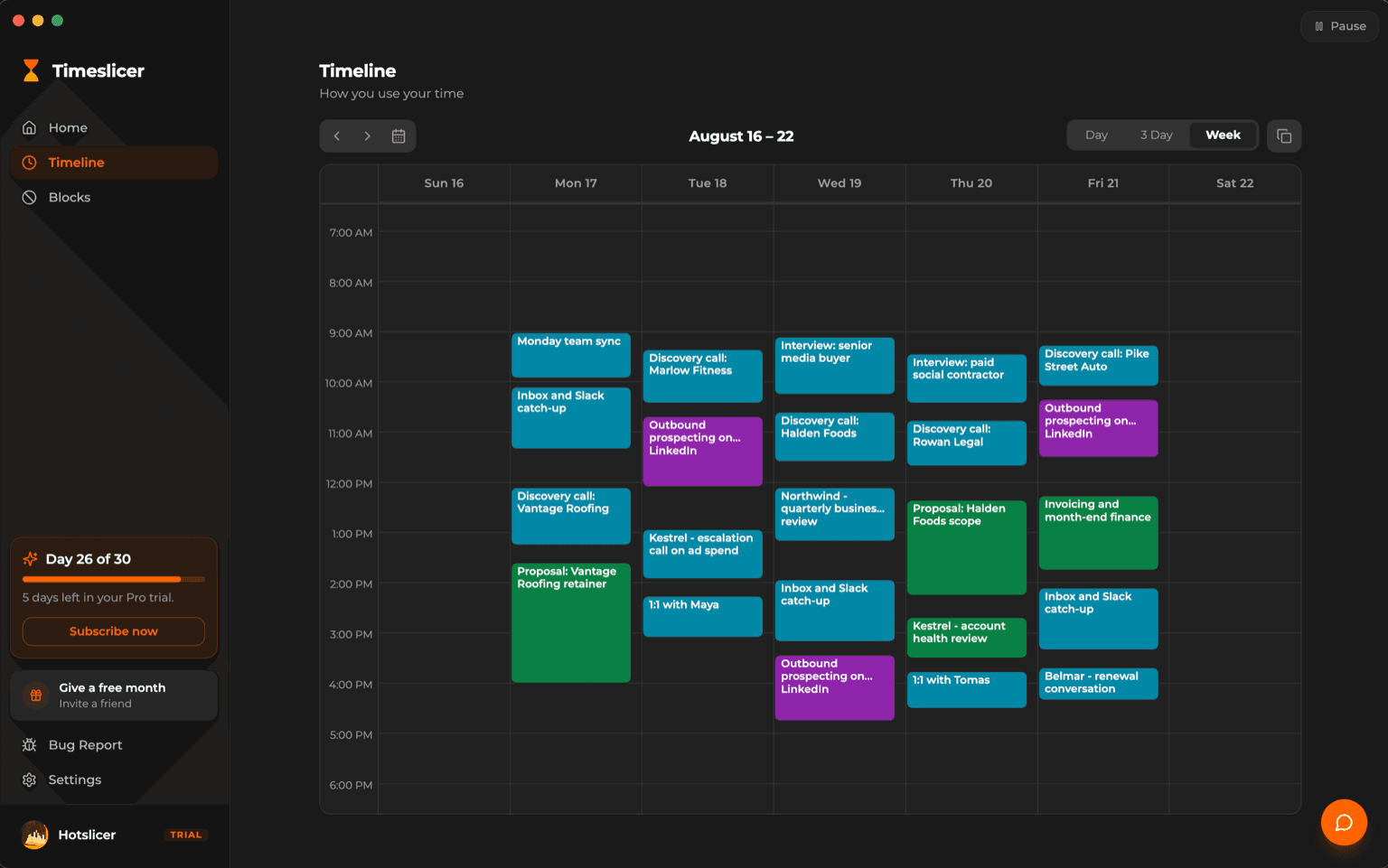
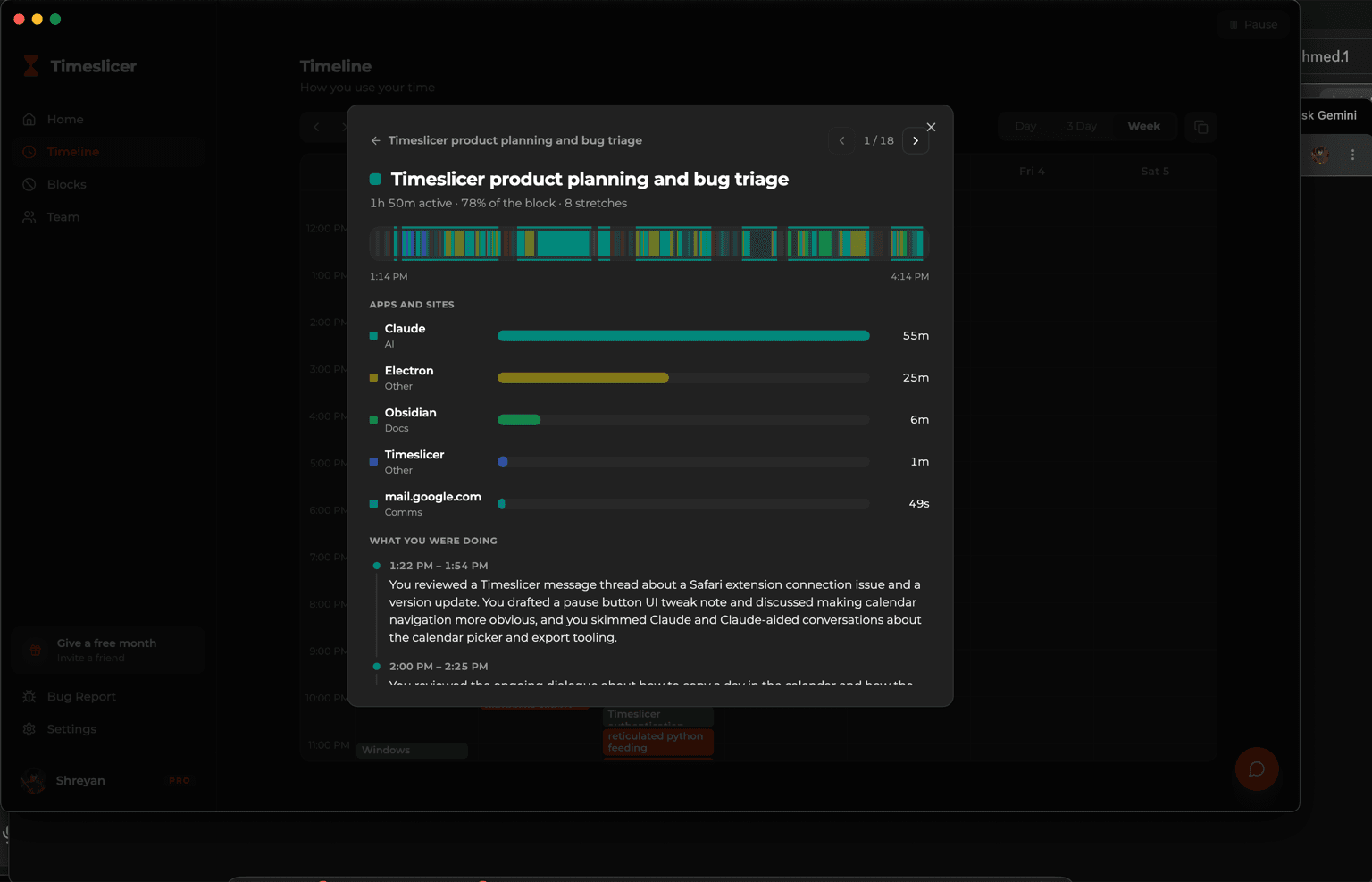
Opening one of those blocks shows what it was made of: the applications and sites involved, and a written account of what happened in it.
This is a real trade and worth being clear about. A tracker that reads screen content can tell you what you worked on. A tracker that refuses to read screen content cannot, and some do refuse as a deliberate privacy position. There is no version of this that reads nothing and still answers the question.
In Timeslicer, reading screen content is off until you switch it on, the image is discarded immediately after the text is read, and your task history stays on your machine rather than on our servers. The data page covers exactly what happens, including the parts we cannot guarantee.
What to do with the answer
A list of what you actually worked on is useful in a few specific ways, and it is worth being concrete rather than promising that tracking changes your life.
It makes the weekly update a matter of reading rather than remembering. It shows where a day went when the day felt busy and produced nothing you can name, which is usually a switching problem rather than a laziness problem. And it gives you a record of how long similar work took last time, which is a better starting point for an estimate than a guess.
What it does not do is make you faster on its own. A record is only useful if you look at it and change something.
See your own week
Timeslicer builds this automatically on Mac and Windows. Thirty day Pro trial, no timers to start.
Related
If you are comparing tools: Timeslicer vs Rize and Timeslicer vs RescueTime, both of which cover how each product handles this question. If the privacy trade is your main concern, start with what Timeslicer does with your data.
Last updated 3 September 2026.